The Ultimate LinkedIn Guide for Founders and Startup Businesses

Updated: Sep 28
One of the most enjoyable bits of my job is helping startup businesses kickstart their social media presence.
I’ve been through that launch process myself so not only have I been able to put my own advice into practice, I’ve also refined it to be as effective as possible when working with clients who are taking the plunge into self-employment.
I've now turned all of that advice into what I believe is the ultimate LinkedIn guide for startup businesses.
You’re now reading it.
Each section is quite detailed so I’ve broken it down into these ten key sections – read it all or click on link to the section that’s most relevant to you.
Contents
Two important things to note
Just before I dive into the guide, two important things to note:
All of this advice is based on making edits via the desktop version of LinkedIn. You can also LinkedIn profiles and pages via app, but for something as big as starting your own business, I recommend making these changes on your computer.
This guide doesn't include any detailed advice on LinkedIn Premium – either for profiles or pages. It has it’s place – particularly if you’re going to focus heavily on lead-generation or talent acquisition – but it it expensive for most start-ups. This guide recommends everything you should, and could do, with the free version before adding another business expense to your monthly invoicing.
1. Who is this guide for?
It’s primarily for startups and entrepreneurs who have just launched, or are in the process of launching a new business. This might be the first time you’ve launched a new business, or the fifth. You might be launching with a business partner or on your own.
In contrast, you may also be an owner-managed business looking to use LinkedIn more effectively, or even for the first time. You might have realised you're missing out on new business, investment or talent because your LinkedIn presence is lacking. I know this guide will help.
You're all welcome.
Fundamentally, no matter what stage of business you’re at, this guide offers practical, actionable advice you can follow to get more from your LinkedIn Company Page, as well as your own personal profile.
Thank you in advance for reading.
2. Why does LinkedIn matter for startup businesses?
This section is important, but I won’t drag it out.
LinkedIn has over one billion users and 67 million companies, and remains the world’s biggest business-focused social media platform.
It matters because it’s relevant for all businesses, particularly in these three key areas:
Provide value (and promote your business) Share your expertise and talk about what you do. More importantly talk about the reasons and benefits why what you do helps your customers. Remember the 95/5 rule – most of your customers are not ready to buy. So, if all you do is broadcast sales content, you’re ignoring most of your potential audience. Instead, provide value and become memorable.
Support others (and they’ll support you) Alongside sharing useful content, LinkedIn is all about networking. Connect with new people but, most importantly, connect with relevant people that help you grow your network. Critically, make sure you engage with peoples’ posts and content – like, comment and be supportive. Help others with their new business goals and they will help you with theirs.
Hire new talent As you grow your startup, you’ll want to find people that will help you deliver your vision. Share content that demonstrates your company culture to make life easier when you’re hiring in the future.
3. How to create your LinkedIn Company Page
Unless you’re a serial entrepreneur or a social media professional, the majority of new startup founders will have never set up a LinkedIn Company Page before.
Don’t worry. It’s a straightforward process that’s also quite rewarding.
And it’s free.
But first, how do you create a Company Page?
Click on the For Business menu item in the top right-hand corner (it’s the nine small squares)
Click Create a Company Page+
Choose your page type – for nearly all of you this will be Company (unless you are an Educational institution such as school, college or university, or you want it to be a Showcase Page. An explanation of Showcase Pages can be found here.)
Start filling in your Company details – there are eight things to complete, all of which can be edited later. See the section below called ‘Editing and optimising your new LinkedIn Company Page’ for full details.
When complete, click Create page.

4. Editing and optimising your new LinkedIn Company Page
This section covers everything you must complete on your Company Page, as well as the various things you could change but aren’t essential for the launch of your startup.
To visit your Company Page, click on your profile picture in the top right corner, and then look for the Page under Manage.
When your Company Page loads, you’ll be presented with the admin view. Only Page admins can see this view. (You can add more Page admins in Settings).
On the left-hand side, click on Edit Page. This shows everything you can edit on your Company Page.

Side note: cover images are edited on the Page itself
Before you click Edit Page, you can add or change your cover image. This is the banner that sits at the top of your Company Page.
The recommended dimensions are 4,200 pixels wide x 700 pixels deep.
I recommend keeping the image as simple as possible, with minimal copy. This is for two main reasons:
You don’t have to use every square inch of editable content as space for a sales message.
LinkedIn will adjust how the the image to fit the screen depending on the device being used to view your profile.This means it might be trimmed horizontally or vertically when you compare desktop vs mobile.
Desktop:

Mobile:

(It's not a drastic difference but it does make an impact if you have lots of text on the image – which I don't advise).
Page info
This section includes four of the eight things you added when you initially set up your Company Page. They are:
Logo – use your primary company logo or icon. Upload this in a square format but remember: when it appears in feeds it’s cropped to a circle. If you have a wordy company name, this will be very small in the image so use an icon or symbol from your brand to make it legible. The file should be a 400 x 400 pixels square JPEG or PNG.
Name – this is your public-facing company name, i.e. what you want the world to call you. It does not need to include Ltd or Inc., etc. unless it’s a key part of the brand name.
Page URL – a unique URL for your Company Page, subject to availability (there may be other companies on LinkedIn with a similar name to yours). Keep editing it until you find something that’s available and, more importantly, you’re happy with. Unlike your name above, this might include Ltd or Inc., if it helps secure a unique URL.
Tagline – a succinct summary of what you do, or your primary strapline. It has a maximum length of a 120 characters including spaces.

Buttons
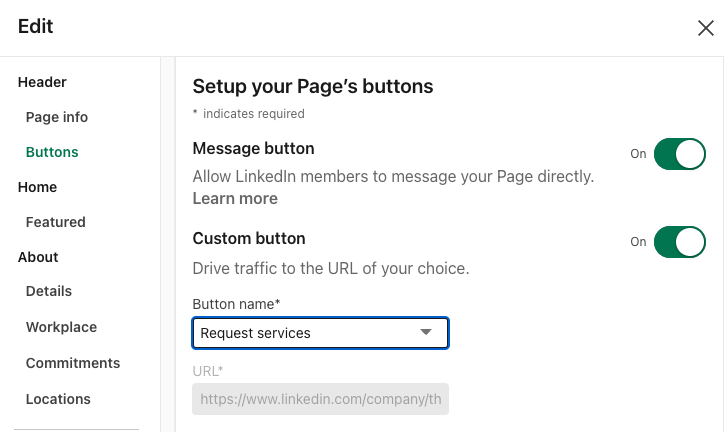
Here you can edit the ways your page visitors or followers can contact you:
Message button – this is where anyone can direct message your page, just like they would to another person on LinkedIn. You may want to turn this off while you get to grips with running your first ever Company Page – at least until you’re ready to receive DMs.
Custom button – a custom button to drive traffic to a URL of your choice. Mostly this will be your website but it could also be a lead gen form or landing page. Choose the wording of your button from a pre-selected list:
Contact us
Learn more
Register
Sign up
Visit website
Visit portfolio
Visit store
Request services
URL – when visitors see the above wording and click it, this is the destination LinkedIn will send them to.
Featured (posts)
Increase visibility for your most important posts, newsletters, or articles by featuring them directly on the home page of your LinkedIn Company Page.
You can’t feature any posts if your Company Page hasn’t published any.
Initially, feature your launch posts – such as who you are, what you do, or your key people – then change them to other content after a few months.

About
This is where you add more detail to display on your page – what you do, where you are, how to get in touch, and more.
Overview – a detailed description of your business, what you do and the benefits it brings to customers. Maximum 2,000 characters including spaces. Key things to include: who you are as a brand, what you do, why you do it, why it benefits others, core business beliefs etc. The recommended length is 2-3 short paragraphs – which is well below that 2,000 characters limit.
Website URL – link to your company website (even if it’s just a holding page or simple form).
Industry – the sector you work in. LinkedIn gives you preset options but you can only see these when you start typing the name of your sector. Find the one that best represents yours. You can only choose one.
Company size – this is the number of employees in your business, including yourself! There are nine options of different thresholds, from 0-1 employees to 10,001+ employees. Choose the one that’s right for you, but remember to change it as you grow and reach a new threshold.
Company type – are you self-employed, privately owned, a partnership or something else? There are eight options here, choose one.
Phone number – if you have a publicly contactable phone number then add it here, however it is not a mandatory field.
Year founded – include the year you officially started trading.
Speciality – this feature is broken on LinkedIn desktop and unavailable on mobile. I have included it for reference but you don’t need to do anything with it… because you can’t!

Workplace
This is a more detailed section that isn’t essential when launching your startup on LinkedIn.
It’s main purpose is to help your brand stand out to potential candidates when you’re hiring.
If you know this information at launch, and it will make a difference during the hiring process, then definitely include it, but for time and brainspace, I recommend you leave it turned off at launch.
It includes:
Primary workplace policy – outline whether you a fully on-site, hybrid or remote working company (you can only choose one).
Describe your company’s workplace policy – share the details of why the above policy works for you and your employees. You can include any key benefits that show how you go above and beyond for the people who work for you.
Company policy URL – add a link to your company policy around working, if you have one. This isn’t a mandatory section.
Workplace benefits (three maximum) – here you can add up to three key benefits of working for your company. Choose from a list pre-selected by LinkedIn including, company wellness days, flexible working hours, free meals, gym on-site and more. Think about which ones make you stand out the most future hires.
Location-based pay adjustment – do you adjust pay based on region or country, it does that not matter? Or, would you prefer, not to show this section? All of these four options are available.
Vaccine policy – this refers to COVID-19 and is a mandatory section. You can choose not to show this section, or select one option from three other choices. If you do include your vaccine policy, you have the option to include a URL to the most relevant section of your website.

Commitments
This is another section that isn't mandatory for a startup launch, but one that could prove important in the future.
It lets you select the commitments that are important to your company and you want to feature on your Company Page.
These are:
Career growth and learning
Diversity, equity and inclusion (DEI)
Environmental sustainability
Social impact
Work-life balance
For each one, if selected, you can then add additional details and resources such as links, documents, reports, and more.
For more information, see LinkedIn’s Company Commitments Best Practices Guidebook.
Location
The place(s) where your business is physically based. This gives you the chance to show every location associated with your company.
When added, LinkedIn will display a map with your location(s).
If these are offices where customers, suppliers or other contacts may visit, then definitely include them. In this instance, fill out the full address details for each location.
Example: Google’s LinkedIn Company Page lists its 41 office locations across the globe and its map looks like this:

If you don’t have an office people can visit, then just include the country and city you operate from. This gives your page a physical location, but no more detail – for example, I live and work near Derby so I've just added the start of the main postcode, DE1.
Manage languages
This is the final, editable section of your Company Page. You’ve made it!
You can add up to 20 support languages for your LinkedIn Page. When members view your Page, they'll see the company name, description, and tagline in their selected profile language – if you've entered information in that language.
Please note that last section.
You will have to add the translation of the description and tagline manually for each language you select.
5. Updating your personal LinkedIn profile when starting your own business
A big moment when launching your startup is updating your personal LinkedIn profile. This was one of my favourite moments when, on the morning of my launch, I could change my employer details to my own company.
To make that change, I of course had to create that Company Page in the first place – which is why I’ve sandwiched this section into between creating your Company Page and posting from it.
This bit is really important, but it does assume you already have a personal LinkedIn profile as it will advise you on the necessary tweaks and changes you need to make when starting your own business.
However…
If you don’t have a personal LinkedIn profile it will still make sense. And, as a business founder, I really do advise you to set one up.
PROFILE ELEMENT | WHAT IT IS | WHAT YOU NEED TO DO | PRIORITY NOW = ASAP NEXT = After the launch or when budget allows |
Profile picture | A professional headshot of yourself. Ahead of your launch you may want to consider new headshots – along with other founders, directors, employees. This ensures brand consistency. | If required, update your profile picture to a new headshot. Make it relevant and in-character, e.g. if you don’t wear a suit to work, you don’t need to wear one in your picture.
If you have branded clothing, you can wear it.
If you’re PT, wear gym gear.
Lots of LinkedIn profile pictures are either overly formal or clearly a picture from a night out. Neither work. Find a balance that works for you. | NOW |
Background photo | Profile banner images that sit behind your profile image. Think of it as an additional space to promote your business. | Create an on-brand image using the following dimensions and formats: 1,584 (w) x 396 (h) pixels (4:1 ratio) PNG or JPEG. Bear in mind it can look slightly different on desktop and mobile. 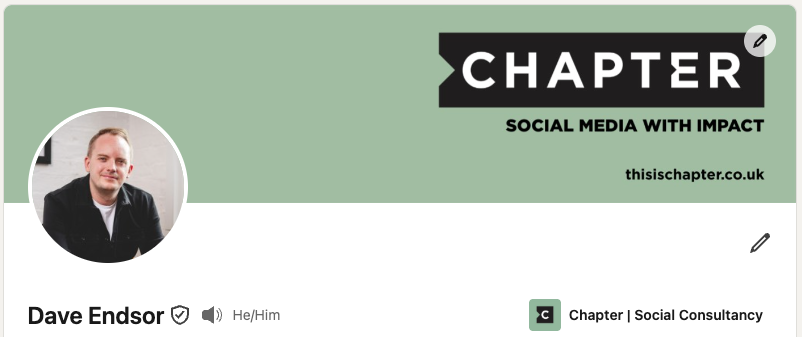 | NOW |
Industry | Select the most appropriate industry that you work in. This isn’t visible to other LinkedIn users unless they use the search or invite followers function. | NOW | |
Location | The primary location you operate from. This isn’t an exact address but the town, city or region. | Update the location to the most relevant one. If you’re fully remote, then select the nearest area to where you live. | NOW |
Pronouns | Let others know how they can refer to you. If you’re not sure why this matters, please read this article on gender pronouns.  | This is a simple change that considers the feelings of others. I have seen some frankly terrible advice that recommends changing this section to use as another space for selling what you do. Please don’t do that. | NOW |
Headline | This is the section that sits just below your profile name. It’s a space to write a short, but succinct, summary of who you are and what to do. | These are the key things to consider including in your headline:
Here’s mine for reference: Organic social media strategist | Helping marketing directors, CMOs, social media managers and business owners to get more from social | 15+ years' experience | NOW |
About summary | This is a brief, first person summary of who you are, what you do and where you do it. | You can write up to 2,600 characters – approximately 450 words – but I don’t recommend you use all of that space. Instead, write a succinct summary of of around 100 to 200 words, covering off these key points:
| NOW |
Position at your new company | This is your role(s) at your new company. | When adding this new position, you’ll need to search for your new Company Page, then add it. As a founder or co-founder this might be a combined role, e.g. CEO and co-founder. | NOW |
Position description | A summary of what you do, including your responsibilities, as well as successes or examples of customers/clients, or other interesting information. | You can split this description as follows. What you do
More info about your company including what it does and examples of customers/clients or important moments.
| NOW |
Position description media | Example of your work or experience to add additional insight or demonstrate your expertise in action. The simplest and best starting point could be an introductory piece of content about the brand – either a PDF or image with link to external site – e.g. your credentials or introductory sales deck. In the future, you can add other media. | This section is nearly always missed on personal LinkedIn profiles. Mostly because people don’t know what to add. You can add a link, an image or a document (e.g. a PDF). Some examples include:
Here’s mine:  Actual video files aren’t supported but you can add a link to a video, e.g. YouTube. Don’t forget to edit this section as your business grows. | NOW – a piece of media that you can quickly use to support your launch. NEXT – once the launch phase has settled down, revisit this section and update with new brand content. |
Past experience, description and media | All of your other previous roles before this one. | These sections follow the same format as your current role. Update them with relevant information and media, but you don't have to include a heavily detailed description of the company itself. Focus on your role and your achievements and/or the names of major customers or awards. If they’re super important then add them to your About section summary. Importantly, check all of these roles have end dates. You don’t want people to assume you’re still working in another role. | NOW |
Education (e.g. school, college or university) | This is where you attended school, college, university or all of the above. (It can also include online institutions). Not an essential item for any launch, but useful for making connections in the future. | Add the qualifications you attained at each of the institutions you attended. This will identify you as an alumnus on that institution's LinkedIn page. It’s a small but useful feature that allows you see other alumni and also acts as a brief conversations starter. | NOW |
Custom URL | A custom URL for your profile. Don’t ignore this as LinkedIn automatically makes you a very long-winded one when you sign up. It can be changed! | Another often overlooked section. This is a really easy and quick change that can make your profile URL much neater, clearer to read and easier to remember. It's slightly fiddly to change so follow the guide here to do so. Most people use a variation of /firstnamelastname or /firstname-lastname. Keep editing until you find a combination that’s available (it has to be unique to LinkedIn) and something you like. | NOW |
Contact information | Email address, phone number and other contact information that you are happy to be visible to your connections. | The email address you signed up with will automatically be used here, but all other information is editable (If you want to change the email address you use, then you can do so here). Only include the information you are happy to be made public. For example, don’t include any phone numbers that you would prefer were kept private. Additionally, if you are going to add an address then make it a visitable business one, not your home address or a registered location (e.g. your accountant). You can also add your website, see below. | NOW |
Websites | Link(s) to all of your relevant websites. | This section should include your main company website, but also any sub-brands. You can also add other website links, e.g. a personal blog. LinkedIn gives you the option to label these as follows:
Check if your list includes any websites from former employees and remove them. | NOW |
Recommendations – received | A recommendation is testimonial or commendation written by someone else to recognise your work, skills or expertise. Your connections can write one unprompted or after you ask them too. As above, but also ask for recommendations from the same people! These will be public praise of you, essentially! When you get them you can use them in other places such as credentials, website and pitch decks. These can come from colleagues, customers, suppliers, friends and other connections you know well. To get the ball rolling, all execs should recommend each other. | Requesting a recommendation might seem like something you only do for an ego boost, but it does have importance. Not only does it demonstrate you’re good at what you do, those recommendations can be used outside of LinkedIn. Request recommendations from friends, colleagues, customers, former customers and suppliers. All of this builds a picture of what you do well, which is particularly important for you new business. Those skills don’t disappear just because you’ve started something new. This is how you do it. | NOW |
Recommendations – given | As above, but this is you recommending other people. | It is, admittedly, useful to ‘play the game’ on LinkedIn and recommend others. However, it does have its benefits as it shows you’re not a one-sided individual who’s only focused on what people say about you. This shows you value others and the impact of their work. | NOW – key business partner NEXT – other strategic connections (they might recommend you in return) |
6. Inviting your connections to follow your Company Page
This is one of the easiest things you can to help grow your startup’s LinkedIn Company Page in those early months.
However, it is criminally overlooked!
You should always invite your connections to follow your Company Page, particularly if they’re relevant connections. You can do this using LinkedIn’s ‘invite to follow’ feature. This allows all Company Page admins to invite their connections to follow a Company Page.
Here’s how you do it:
Go to your Company Page (click on your profile image then the relevant Company Page).
As an admin you’ll see the menu on the left-hand side. Scroll down and click invite to follow.
This will bring up a pop-up where you will find a long list of all of your connections.
They can be filtered by name, current company, location, school/university or industry.
Select the people you want to invite and click invite.

The acceptance rate can vary and not everyone will click yes. Before you choose who to invite, think about these three things:
Do you know this person well?
Are you the best person in the business to invite them?
Would they be a relevant follower of the business?
Finally, some other important things to remember:
Make it a habit every month. It doesn’t take long to do.
You get 250 credits (invites) per month.
This is shared between all page admins (it's not unique to you).
Use as many of these invites as possible every month.
If you've exhausted your connections, then make other people an admin and ask them to take over.
These can be co-founders, senior directors, sales people, account managers, other members of your marketing team, senior leaders or even recruitment and CSR-related departments.
Repeat!
One more thing… don’t forget to make sure all employees follow the Company Page.
It’s often overlooked!
7. Sharing content from your Company Page
Posting from your new Company Page can feel scary if it’s not something you’re used to, especially when it's your company.
That fear never fully goes away but it does get easier each time you post.
This section gives you a three key tips when sharing content... but first, a bit of marketing theory – it’s not boring, honest!
Understanding the 95/5 rule when posting on LinkedIn
I referenced this rule at the start of this whole post, and it’s something I believe is super important in all forms of marketing.
I won’t dwell on it for long, so here’s a summary of what it is, followed by my thoughts:
“Only 5% of B2B buyers are in-market to buy right now. That means 95% of the buyers that you reach are out-of-market and won’t buy for months or even years. And, contrary to popular belief, you cannot persuade the buyer to go in-market because they already have what you’re selling and won’t need a newer version any time soon.” Source: Ehrenberg-Bass Institute
If more people aren't ready to buy than are, this means your LinkedIn content should focus less on sales or broadcast messages and, instead, more on content that builds a better picture of you as a brand, through relevant, useful, valuable or trusted content.
All of this means, your content should help you be seen and understood by as much of your potential audience as possible, making you more memorable and sought after when they are ready to buy products or services like yours.
While the research is based on B2B sectors, it does also apply to B2C brands. That percentage might change depending on the sector, but the thinking and logic doesn’t. The brands with the most effective marketing are always the ones that make themselves the most memorable – whether that’s through useful and informative content, or by being entertaining or controversial.
Three key tips to posting from your LinkedIn Company Page
LinkedIn does have a set of professional community policies which every user and company should follow. These are very obvious topics which any sensible person would never fall foul of on LinkedIn.
However, this short list of do’s and don’ts below is more a guideline of some things to consider when sharing content from your Company Page.
Be personable, but don’t go over the top. Life as a founder is an emotional rollercoaster that gives you moments of inspiration (and exasperation!) which you may want to share on LinkedIn. It’s perfectly acceptable to give an honest view of the ups and downs of the early months of your business – and beyond – while still demonstrating thoughts that perfectly showcase your passion and commitment to the idea.` However may you want to limit the extent of this sharing so it doesn’t become a ‘warts-and-all’ approach, where you post about everything that happens. This is to protect your own mental health but also your repetition with existing or potential customers, as well as other connections.
Share your thoughts, but stay away from drama.
Following on from the above, a bit part of LinkedIn is sharing broad thoughts and opinions on a variety of (mostly) business-related topics. When shared openly and respectfully, these are the basis for what makes for good content and engagement with others. However, unless certain topics are directly linked to your business or the services it supplies, you may want to steer clear from inflammatory thoughts that may spark arguments in the comments section of your post(s). Examples include politics or anything associated with modern-day ‘culture wars’.
Stay consistent, but don’t be afraid to experiment. Crucially for you to succeed on LinkedIn, it rewards relevance, engagement history, consistency and lots of other signals which you can read about in this SparkToro article. Ultimately, show up regularly, talk to others, like their stuff and be consistent with your posting and your topics or themes – at a frequency that’s comfortable for you. As for the experiment bit, occasionally try new things. If you’ve never shared a video, give it a go. If you’ve seen a version of a post you know you could do in your sector, give it a go. You only ‘fail’ by not trying.
8. Announcing your new company on LinkedIn and what to do after
It’s one thing to exist as a business, it’s another thing to tell the world.
Once you’ve created your Company Page and your business is ready to launch, you’re going to want to shout about it.
But, before you start to post heavily on LinkedIn, I would always recommend a LinkedIn strategy, but the below table is an outline content plan you can follow to launch your business.
If you stick to an initial frequency of four posts per month, this plan could give you approximately three months’ worth of content, alongside other activity.
I’m almost certain there will be other ideas to post but this gives you a really strong foundation for initial content that helps you maintain momentum following your launch.
Important reminder – don’t let these ideas below get in the way of other content such as event or conference attendance/exhibition, PR announcements, or award wins, for example. If any of those things do happen, please post them – then adjust your schedule accordingly.
CONTENT IDEA | SUMMARY | CONSIDERATIONS |
Coming soon | A simple image or subtle video/animation that teases your new brand and hints at what you do. Save the full details for the launch announcement. | Before you make this post, I would advise you invite relevant connections to follow the Company Page. You may only want to invite those who you’ve told personally, so they know why you’re inviting them. However, if this doesn’t worry you, then invite all relevant connections, as I explained earlier. |
Launch announcement | The big one. This is where you announce what you’re doing and why, as well as sharing your ambitions for the future. As above, it can be an image, a video or even a series of images in a PDF carousel that tells the story of what you’re trying to do. It could also be a brand reveal, an image of you, or even the core people involved. This was mine. | You will also want to make this announcement from your personal profile, perhaps with a more tailored and personal message (including any relevant thank yous). Don’t forget to @mention your Company Page when you do. Pro tip: pay attention to everyone who likes this post and invite them to follow the Company Page. |
Behind the scenes of the launch | This post gives you the chance to extend the launch announcement by showcasing what went into making it happen. Some businesses launch with their own event or a staff party – or at a conference. Be sure to capture those moments – even if you don’t plan on sharing this type of post. You will want to remember it! Pro tip: if you don’t get a group shot of your team at the time of your launch, you might regret it in the future. | As your audience and new followers recognise you’re still in the startup phase, it’s ok to continue to ride that wave. This post could be a series of images or a single edited video that shows the people involved, and what it means to you all. |
Summary of what you do and why you do it | This idea might be one of a very few posts that you publish that’s overtly salesy. Here you can shout about your core services/products in more detail, giving your audience relevant and useful information. It can include a bit about your story (including your ‘why’) as well as your goals, ambitions and reasons why potential customers should work with you. This was my version. | If you’re referencing specific business departments or teams, then be sure to @mention the key people involved. Once published, you can feature this post on your Company Page profile. |
Why we started/our story | Your company exists beyond ‘I started a business’ fullstop. Explain your personal (or team) motivations for launching the brand. This might be a broad sector challenge or frustration, a market gap or personal experience. Make it feel real, human and authentic. | This could be a video from your founder(s) or a PDF carousel summarising key thoughts.. Once published, you can feature this post on your Company Page profile. |
Meet the Founders/board of directors/SLT | This is a succinct summary of your key, senior personnel. It might be just your founders – if you have several – or you can expand it out to include your leadership team or those with business-critical roles. This could be a PDF carousel introducing the team, where each slide is one person. It can include just a face, name and job title – or all of those – plus a bit more detail about who they are and what they do. Recommended length of 5-10 slides. Example slide structure:
| This post won’t include everyone in your business but at this stage you’re demonstrating the leadership and its expertise. Don’t forget to @mention everyone featured in the post copy itself. |
The number one problem facing your customers | This should identify the main challenge your audience relating to what you do. It will naturally be slightly salesy, but it should mostly focus on identifying that problem and how it can be solved. It shouldn’t dwell too much on why you solve it. That can be implied in the content itself – and reinforced by your previous content. | If this is genuinely a big problem facing your target customers, you’ll want to repeat the thought in future posts. These can contain the same message as before, but delivered via different content type. |
Early win or case study | A real, credible example of your work in action, and its results. This doesn’t have to be a super detailed case study (although you can share that if you have it), but an image or quote from a client. It could also be a short video interview with that customer. | If you have the example but not the permission to name a customer, then anonymise their name. But do give context on their sector and other relevant information – without explicitly or accidentally revealing who they are. |
Meet the team member | This can be the start of a series of posts you might publish once every few months. It’s a simple meet the team-style post – in PDF or video format – to highlight an individual working for your business. This is particularly useful for showcasing your talent but also for help attracting new people to the business. Here’s an example of mine when I worked at Blue Light Card. It wasn’t my idea – I’m not that much of egomaniac! | These posts, around 5 to 10 slides if it’s a PDF or under two minutes if it’s a video, can highlight more about each individual, their work, and their personal interests. Show off their personalities! Over time you can also introduce other members of the team in individual carousel posts. |
Thought leadership | Remembering the 95/5 rule mentioned earlier, your content should showcase your expertise, rather than frequently push sales messages. Thought leadership – in the context of audience challenges – can become a common theme of your content. This can be insight shared via external publications, journals or websites – or just key topics that you want to raise awareness of within your content. | If your audience reads your content and begins to think any of these thoughts (and others) you will become more memorable:
|
Maintaining momentum
Following your launch, you may also be attending trade events or conferences. That requires a whole other content plan to weave into your existing strategy – however, it’s something I will be writing about in the future as it deserves its own, more detailed post.
Finally, the following image is one of the most-photographed slides by my audiences whenever I present my guide to LinkedIn. You can now steal it too!
It contains a big list of potential content themes that you could apply to your business. Not all of them will be appropriate but I guarantee at least 20 will be useful to you. (If you don’t find 20, let me know and I will personally email you the amount you’re missing!).

9. Company Page content types
Following on from the ideas shared previously, this section shares the types of content you can publish from your Company Page.
There are four main content types:
Copy only – this is a post that doesn’t contain any other media – no images, no video, no documents. You might publish a copy only post if you think there’s nothing extra to be gained by adding any media. See below or click this link to the post.

Image(s) – you can upload up to 20 images in one post. Most dimensions work but avoid sizes that reduce the impact of your images e.g. letterbox-style images. See below or click this link to the post.

Video – this lets your audience see and hear your passion for what you do, reinforcing your company’s knowledge and expertise in that area. You can upload a variety of video file formats – listed here – in different sizes. Most people use LinkedIn on their phones so focus on vertical or square sizes, e.g. 1080(w) x 1920(h), 1080(w) x 1350(h) or 1080 x 1080 pixels. The maximum length is 15 minutes but I recommend between under two minutes for swift, informative content. See below or click this link to the post.

Documents – possibly my favourite content type on LinkedIn! These can be Word or PowerPoint, but I prefer PDFs. They’re a great way to tell a story, as these files upload as a swipeable carousel. The same rules as video apply so use square (1080 x 1080) or vertical formats (1080(w) x 1350(h) pixels – my preferred dimensions. See below or click this link to the post.
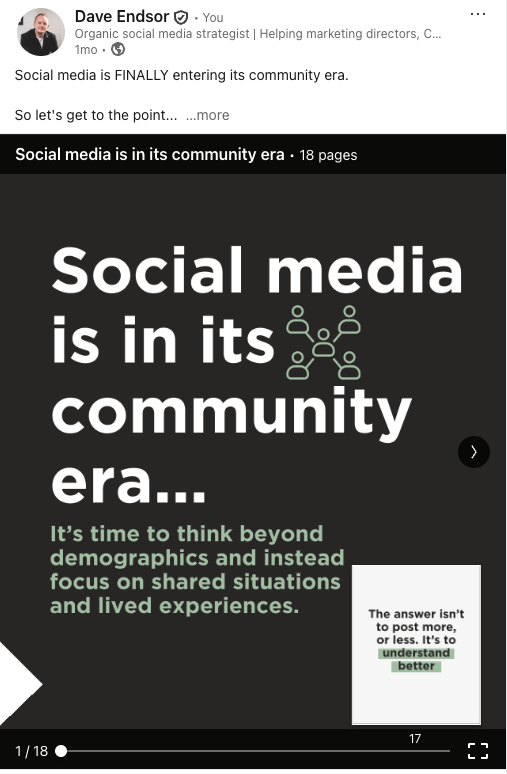
Using in-built functionality on LinkedIn, you can also create polls, occasions/events, hiring posts, articles or a newsletters from your Company Page.
However, these are all things to explore at a later date, once you’re more comfortable posting from your Company Page.
10. One final tip (aka the end)
If you’ve read every single section of this startup guide to LinkedIn, thank you.
The same applies if you’ve skipped to the end as you were mainly curious about my final tip, I see you! My curiosity would have got the better of me too!
I hope all of it – or at least a section or two – will help you and your new business accomplish whatever you have set out to do. I know the challenge of taking that plunge to become self-employed – it’s a huge decision that can be equally scary and exciting.
Please remember to enjoy the ride!
As for my final tip, it’s this:
People get far more out of LinkedIn when they are themselves, while also supporting and lifting up others – regardless of their industry, role or expertise. Be you… it’s what got you where you are today.
–
About Dave Endsor and Chapter
I'm Dave, a social media strategist and founder of Chapter. I have over 15+ years' of agency and in-house experience, helping hundreds of people and businesses use social media more confidently, strategically, and purposefully.
I've worked with well-known brands including Blue Light Card, Miller Homes, Bayer, The Access Group and many more. I've also worked closely with a number of startup businesses.
Fun fact: I led the social media team that helped Game of Thrones star, Emilia Clarke, launch her charity SameYou.


